Yes you can. You can perform a charging session for your cars. However, if you wish to schedule a smart charging session, this is only possible via the MyToyota app. If your cars are added to your MyToyota app, you can select the car you wish to charge. Next you can follow the steps in your MyToyota app to perform a smart charging session.
Frequently asked Questions
- All
- Toyota HomeCharge
- Smart Digital Key
- (De)activation
- About the app
- Account
- Services
- Technical issue
- Toyota Smart Connect
- Migration
- Smart Stops & Offers
- Remotes Services paid subscriptions
- Proace
- Data Act - General Information
- Data Act - For Customers and Vehicle Home Charger Owners
- Data Act - For Third Parties (Repairers, Insurers, App Developers, Fleet Managers)
- Data Act - Technical and Legal Aspects
- Accident Assistant
Please open your MyToyota app, and select the car you want to charge.
Then choose the way you want to charge and follow the steps in your MyToyota app.
The RFID cards are added to the charger, if both use the same charger, then you only need to add it once.
Yes it can. The 1st user will be the owner with full access to features and setting, and the following users will be guests only with charging rights. These are the steps to follow to add Toyota HomeCharge to your MyToyota app:
- Open your app and select 'My Garage'
- Select 'Chargers' and 'Add chargers'
- Type or scan the Toyota HomeCharge serial number
- Enter the PIN code and a nickname
- Tap 'Access & Sharing' to add or remove users
You may use your smartphone as a key to access and drive the vehicle. Certain vehicle models are equipped with the Smart Digital Key feature, (please Consult your Local authorized retailer for more information) which allows you to register the feature through the smartphone’s Bluetooth using the MyToyota app.
A smartphone set up for Smart Digital Key, with Bluetooth enabled and the MyToyota app open or running in the background, is recognized and connected to the vehicle within close distance. This allows for unlocking, starting, and locking the vehicle remotely with your smartphone or by just touching the door handle.
Note: Please have the Smart Key/Physical Key or Key Card as a backup for vehicle access.
Smart Digital Key requires an active trial/subscription to Toyota Smart Digital Key.
Register an account via the MyToyota app to begin your Digital Key setup*. Ensure you have active Standard Connectivity with Smart Digital Key Trial/subscription.
Follow the steps in the MyToyota app to set up the Smart Digital Key to your smartphone and your vehicle. Test the unlock, start, and lock functions to confirm the setup process was successful.
You can review your vehicle’s features and capabilities from within the MyToyota app or consult your Local authorized retailer for more information.
To get started with the Digital Key setup, please have the physical key and access to the vehicle.
- In the MyToyota app, ensure a trial or paid subscription to Smart Digital Key is active and Standard connectivity is operative.
- Press ‘Set Up My Digital Key’ on the MyToyota app home screen.
- Enable Bluetooth and Biometrics verification in your smartphone. This step will be skipped if Bluetooth and Biometrics verification were enabled in the past.
- Verify your smartphone number by entering the 6 digit code received via SMS. This step will be skipped if the smartphone number was verified in the past.
- Please enable only one data connection, WIFI or Mobile, prior to the next step
- Allow your smartphone to download the Digital Key
- Review the information provided in the MyToyota app on the pairing process
- With vehicle on, place physical key over the ‘Start’ button for two beeps
- Allow the Toyota app to access your Bluetooth, press ‘Pair’
- Allow the connection to complete
- A successful setup will display a ‘Digital Key setup complete’ message
Please consult the 'How to' material for more detailed information.
Ensure a trial or paid subscription to Smart Digital Key is active.
- Press ‘Digital Key Settings’ on the MyToyota app home screen. You can share up to 4 Digital Keys using the Toyota app.
- Press ‘Share Digital Key’
- Input the new user’s first name, last name, and phone number or add from the smartphone contacts
- Press ‘Share’ and confirm ‘Share Key’
You will receive a notification regarding the response to the Digital Key invitation. At any time, you may remove the shared Digital Key access.
Please consult the 'How to' material for more detailed information.
You can share up to 4 Digital Keys (on top of the owner's access) using the MyToyota app.
An invitation for a shared Digital Key will be received in the form of an SMS, with link to the MyToyota app.
1) Press the link within in the SMS
2) The MyToyota app will open and prompt to ‘Accept’ or ‘Decline’ the Digital Key invitation*
3) Press ‘Accept’ to receive the shared Digital Key
4) Enable Bluetooth and Biometrics verification in your smartphone. This step will be skipped if Bluetooth and Biometrics verification were enabled in the past.
5) Verify your smartphone number by entering the 6 digit code received via SMS. This step will be skipped if the smartphone number was verified in the past.
6) Please enable only one data connection, WIFI or Mobile, prior to the next step
7) Allow your smartphone to download the Digital Key
8) A successful setup will display ‘Digital Key setup is complete’
*NOTE: New MyToyota app users must complete the registration process to create an account prior to accepting a Digital Key invitation.
Please contact your local customer support.
Smart Digital Key provides two unlock/lock methods:
i) Remote unlock/lock --> Available when the Smartphone is within 10m range
Press on the 'unlock' or 'lock' icons on the MyToyota app home page
ii) Passive unlock/lock* --> Available when the Smartphone is within 3m range
Touch the door handler to unlock and lock your vehicle
*NOTE: Locking your vehicle is not possible if the phone is left inside, an acoustic signal is notifies you about it.
In case you want to intentionally leave your phone inside your car and the Smart Digital key is active, please make sure you carry your physical Key and you disconnect your smartphone's Bluetooth before locking your vehicle.
Once the digital key is connected to your smartphone, it can't be used by anyone else or tampered with. The car's system makes sure that the key is strongly tied to your phone and can't be stolen or intercepted.
BLE communication technology used for Smart Digital Key is more modern and therefore more robust against Thief attacks than the classic physical Keys:
- Encrypted communication for a secure connection.
- One-time Keys used to protect each communication exchange.
If your vehicle is equipped with Smart Digital Key, the feature will be available as a service in your MyToyota/Lexus Link+ app.
Please note that feature availability may vary among vehicle models, grades and according to market availability. Please consult with your local Toyota/Lexus dealer for additional information.
Smart Digital Key has 3 range of proximity detection:
1) Remote unlock/lock is available when the Smart Digital key is detected within 10m range
2) Passive unlock/lock* is available when the Smart Digital Key is detected within 3m range
3) Engine start is available when the Smart Digital Key is detected within the vehicle
*NOTE: Touch the door handler is required to unlock and lock your vehicle.
The Smart Digital Key is supported on:
1) iOS devices with version 15.0 or higher.
2) Android devices with version 12 or higher
The Smart Digital Key is NOT supported on:
1) Devices from the brand Huawei (Huawei launched their ownHarmonyOS operating system in June 2021).
2) Devices without biometric strong authentication :
- Samsung Galaxy (A.10, 20 and 30)
- LG K. (20, 30 and 40)
- Moto E. (6 and 7)
- Nokia (1.3 and 2.3)
Smart Digital Key uses Bluetooth connectivity with the MyToyota app running in background and within proximity to vehicle for access. Whereas Remote Control through the MyToyota app allows you to remotely lock/unlock the vehicle over Internet while requiring a physical key for drive-off capabilities.
No*, a smartphone set up for Smart Digital Key, with Bluetooth enabled and the MyToyota app open or running in the background, is recognized and connected to the vehicle within close distance. This allows for unlocking, starting, and locking the vehicle while your smartphone remains in your pocket or purse.
*NOTE: Due to security reasons 48h biometrics verification is required.
You can perform the biometrics verification by signing in to the MyToyota App.
If biometrics verification is not done after 48h Smart Digital Key functions will be locked, to unlock them you only need to perform the biometrics verification.
Install MyToyota app on your new smartphone and sign in with your existing account.
You will see that on the MyToyota app home page the ‘Digital Key Settings’ button is now replaced by ‘Set Up My Digital Key’.
Press ‘Set Up My Digital Key’ and follow the same steps as you followed to setup your Smart Digital Key for first time.
NOTE: In order to transfer your Smart Digital Key to a new smartphone you cannot disable Smart Digital Key from your previous smartphone and your Smart Digital Key Trial or subscription must be active.
i) Remove invited driver* access by Smart Digital Key Owner:
- Press ‘Digital Key Settings’ on the MyToyota app home screen.
- Swipe left over the name of the invited driver you would like to remove and press the bin icon
- Confirm 'Remove'
You and the invited driver will receive a notification regarding the Digital Key removal.
*NOTE: If the Invited Driver is driving while its access is removed, the vehicle doesn't stop. Invited driver access removal becomes effective once the vehicle is switched off.
ii) Remove invited driver access by Smart Digital Key invited driver:
- Press ‘Digital Key Settings’ on the MyToyota app home screen.
- Press ‘Remove Digital Key’ and confirm 'Remove'
You and the Owner will receive a notification regarding the Digital Key removal.
Please consult the 'How to' material for more detailed information.
To get started with the Digital Key deactivation, please have the Physical key and access to the vehicle.
- Press ‘Digital Key Settings’ on the MyToyota app home screen.
- Press ‘Deactivate Digital Key’ and confirm 'Deactivate'
- Review the information provided in the MyToyota app on the deactivation process
- A successful deactivation will display a ‘Digital Key Deactivated’ message
Please consult the 'How to' material for more detailed information.
Claiming vehicle entitelment, as Smart Digital Key invited driver, will deactivate Smart Digital Key and remove all Digital Keys (Owner and Shared) !!
In case you do it by mistake or intentionally, you have to follow the setup process to re-activate your Smart Digital Key.
Smart Digital Key functions doesn't work when the battery of the phone is depleted.
Unlock and Lock functions of Smart Digital Key work when your car is equipped with an after market immobilizer.
Engine Start function of Smart Digital Key doesn't work when your car is equipped with an after market immobilizer.
In case you want to use Smart Digital Key in combination with your after market immobilizer, please make sure to carry your immobilizer transponder.
Once the Smart Digital Key is setup, you can delete it from the vehicle's multimedia system
- On the Multimedia main dashboard, go to the setting icon, then scroll down and tap on “Info & security”. From here, you will be able to see in the Digital Key settings, if Digital Key is active.
- Tap on “Remove digital Keys”, this will initiate the removal process.
- You must confirm your intention to remove your Digital Key and place your key fob on the Start button.
- A successful deactivation will display a ‘Digital Key Deactivated’ message.
Please consult the 'How to' material for more detailed information.
If you feel that the Digital Key is not detected well enough while outside or inside the vehicle, it is possible to customize the range of detection of the key.
1) Press ‘Digital Key Settings’ on the MyToyota app home screen.
2) Press on "Customise Range"
The Digital Key already has settings from the factory that should suit most drivers. What could impact the detection is how you carry your smartphone - Is it in a back pocket? In a purse? Or just carried in your hand?
3) Choose between three different sensitivity levels depending on your personal preferences and press on "Save".
4) A successful sensitivity update message will be displayed.
Please consult the 'How to' material for more detailed information.
It might be that your Smart Digital Key is not in range, signal strength is not enough to allow remote unlock/lock or that the Bluetooth of your smartphone is switched off .
- Go to your smartphone settings and verify that your Bluetooth is ON.
- Take your smartphone out of your pocket or Bag and touch the door handler to unlock or lock your vehicle.
Smart Digital Key is not in range or signal strength is not enough to allow remote unlock/lock. Position your smartphone on the centre console box or wireless charger.
Your Smart Digital key could work without network coverage. However, you should login to the app before going to an area with a poor network (to ensure the app is running in the background)
No, a Smart Digital Key will not work efficiently if the app is installed in the private space. Please ensure that while using the Smart Digital Key service, the MyToyota app is not installed in the private space.
If you buy a second-hand Toyota that supports Connected Services, you can activate Connected Services directly from your MyToyota app given that you can prove physical access to the car (via mileage verification process or QR code scanning). Please visit your retailer to change the ownership of the car to your name in order to enjoy the full functionality of the app.
To add a car, you either click on 'Add Vehicle' on the homepage or if you already have a vehicle click on the My Garage icon on the top right 'add' button. To delete a car, go to My Garage , scroll down and click on 'Remove Vehicle'.
In the MyToyota app, first select your car from My Garage, then click on Connected Services Center. Then follow the flow to activate the Connected Services that are available for your vehicle.
In case one or more connected cars in My Garage have not yet been activated, you will be prompted with a welcome screen to activate Connected Services each time you log into the app. If you skip this step, you can still activate it at a later stage by following the steps above.
For more information please see our How-to-guide.
Note: within the activation process you will need to accept the Terms of Use and acknowledge the Privacy Notice.
If you want to permanently stop Connected Services on the MyToyota app, first select the specific car from My Garage, then click on Connected Services Center. Follow the flow to deactivate the services.
For more information please see our How-to-guide.
You can check your active and inactive subscriptions by going to My Garage, and select the section Connected Services Center.
You can manage your ToU through the Data Privacy Portal section in your account.
You can consult your Privacy Notice through the Data Privacy Portal section in your account.
MyToyota app let you be in control of your car wherever you are. It is easy to use and it will provide you with unique features that bring your experience to a new level beyond driving. You can plan journeys, locate your parked car, find information on when your car is due to receive maintenance, check your vehicle data and receive important notifications about your car, as well as control Climate System, Doors and Hazard lights of your car remotely.
The row of 5 icons from left to right stand for following sections: Vehicle - Map - Notifications - Account - Support
You can access Connected Services at any time. Car data is sent to the app when the engine is turned off. You’ll be able to view the details of your last trip after the engine has been switched off. Mobile data coverage is needed to send data, so it may not work in case you park your car underground.
Connected Services consist of the MyToyota app on your mobile device and the Multimedia system in the vehicle. Each suite is host to its own set of features that make driving safer and more fun, both in and out of your car.
The MyToyota app lets you communicate with your car, wherever you are. You can plan journeys, locate your parked car, find information on when your car is due to receive maintenance, check your vehicle data and receive important notifications , as well as control Climate System, Doors and Hazard lights of your car remotely.
Multimedia allows you to connect your smartphone (compatible with iOS & Android) to your car*. Your favourite apps, like Spotify, WhatsApp, Audible, Google Maps and Waze, can be used in your car, and controlled via Siri Voice Assist or OK Google. Multimedia also gives you access to useful information like real-time traffic alerts and speed camera alerts and allows you to search for points of interest in the navigation system.
*for select models
The MyToyota app allows you to be always connected to your car, while the Customer Portal/Personal Site gives you the opportunity to do more extensive reporting, download owner manuals and enable other multimedia features (map updates, Wi-Fi pack, etc.)
Some of the features are available on both the MyToyota app and the Customer Portal/Personal Site (website) using the same login details e.g. online service booking or service history.
For more details about function availability by model please get in contact with an Authorized Dealer or check the information on our local Toyota/Lexus website.
Go to the iOS App Store or Google Play Store and search for the MyToyota app. Then simply download the app, entirely free of charge.
Connected Services includes Standard Services and Remote Services. Standard Services include our wide range of digital features designed to ensure your safety, privacy and comfort while you are on the go. Stay informed about your car location, battery level, driving behaviour and history, warning lights and much more. Share your car location with friends and loved ones in your network. Remote Services allow you to remotely access your vehicle to adjust a variety of settings and tailor it to your needs. Access all the essentials needed to optimize your driving experience.
Stay a step ahead while driving with a wide range of functions and get to your destination on time. Tune in to diverse events on the road and find available fuel stations and parking spots (on or off-street). Drive worry-free with internet updated navigation.
You decide what data you share with Toyota. You can control this at any moment in the Data Privacy Portal and can withdraw your consent when you want to.
With an appointed dealer in the app you'll get a better experience for such features as Online Service Booking and Warning Lights.
You can check the connected services your vehicle is capable of by typing your VIN on Toyota Connectivity Match: https://www.toyota.com.cy/customer/toyotaconnectivitymatch
Once activated, the Privacy Mode will apply to all Services relying on geolocation, Full Hybrid Insurance, Usage Based Insurance, Find My Car and Driving analytics. When Privacy Mode is active, these Services will be unavailable, or their quality and accuracy may be affected.
Privacy Mode is available in the MyToyota app under My Garage. From the home page at the top, click on My Garage, then Privacy Mode. There you can switch Privacy Mode on or off.
If your vehicle is equipped with the Smart Connect system you will only be able to see the Privacy Mode status via the app. Switching it on/off has to be done via the vehicle’s multimedia system.
The status of Privacy Mode (active or inactive) remains as you have set it until you decide to change the status. You can check the current status of Privacy Mode through your account in the MyToyota app or Customer Portal.
For more information please see our How-to-guide.
With a MyToyota account, you can manage your multimedia system, and receive useful insights on your car through the MyToyota app and the Portal/Personal Site.
The MyToyota app is tied to the vehicle identification number (VIN) of the car and the owner of the car, so you’ll be the only one able to use the Connected Services for that car.
Yes, Connected Services can be added to multiple accounts but can only be activated and active on one account at any one time.
Connected Services consists of the MyToyota app and Multimedia. Each suite is host to its own set of features and must be activated separately.
A quick way to check if Connected Services is active, is to check if your last trip details are displayed on the home screen of the app.
If you are unsure whether your Connected Services are activated, first select the correct car from My Garage, then click on Connected Services Center. Then you will see all services available for the car and their activation status. Then, follow the flow to activate the Connected Services that are available for your vehicle.
To activate Toyota Online connect your smartphone with your car, using either Bluetooth or Wi-Fi tethering, then click on the Setup tab. From there click on the Online tab, then the Toyota Online tab, and choose an existing account. Then enter your MyToyota credentials.
Entering your details will start your 3 years of free service. You can check the expiration date of your Multimedia subscription via Customer Portal.
If you don’t have an existing account, you can directly create one in your car, by choosing the New Account option.
On vehicles equipped with Toyota Smart Connect, you can easily scan the QR code generated on the Head Unit with the MyToyota app or alternately introduce it manually into the app. Then activate the smart services in the Connected Services centre on the MyToyota app.
For more information please see our How-to-guides.
The account details are the same for the MyToyota app and Customer Portal. On both platforms the password can be changed.
To change your password go to the login screen and select Forgot Password.
Your retailer will need to confirm your identity to ensure that unauthorized persons are not able to access any personal data of Toyota customers.
You are requested to visit your retailer because protecting customer personal data is a priority at Toyota.
- Cancel Connected Services Subscription and Remove the car from your MyToyota account in the application
- Remove User Profile from Multimedia head unit
- Don’t delete your account, as any future Toyota cars you may own can be added to the account. Don’t forget to inform the new owner of the car that the vehicle is equipped with Connected Services.
Connected Services will stop if the Vehicle Identification Number (VIN) is removed from your account.
Yes and no. A car can be added to multiple accounts but only one account can access connected services at the time or any other personal data.
The account is shared between the MyToyota app and Customer Portal. On both platforms an account can be created from the login screen. After the creation of an account you will receive an activation email which you have to confirm before you can access your account and add your vehicle(s).
Your MyToyota app and Customer Portal account can be used on the vehicle's multimedia device. If you don’t have one, we recommend you download the MyToyota app and create one from there.
You can also create an account via the online Customer Portal or create an account via the multimedia device itself. In case of the latter, you will still need to accept the Terms of Use within 14 days in the Customer Portal (option is only applicable for multimedia systems before MM21 generation)
In the navigation bar click on the Account section icon, which can be found in the bottom right-hand corner, to edit profile settings.
Connected Services are included with the purchase of any Connected Services compatible Toyota vehicle, for a span of ten years.
Connected Services for vehicles equipped with Smart Connect is included for a span of 4 years.
The Connected Services of the MyToyota app will function for 10 years. Toyota will cover the cost of data used to provide Connected Services for 10 years, but the MyToyota app will function even without Connected Services.
In the My Garage screen you can click on Preferred Dealer button under Service and Maintenance. Here you can set up your preferred retailer.
Hybrid Driving Coaching gives you contextualised coaching on how you can improve your Hybrid driving, based on your previous journeys, letting you make the most of EV mode to lower your fuel consumption and minimise your environmental impact.
Yes, on selected models. On the Dashboard in the Home page you can see the current fuel level as a gauge and the range.
Yes, on selected models you can see the status of the vehicle’s doors, windows, boot and lights.
To check the status go to the Home page. Click on the Vehicle Status button.
For more details about function availability by model please get in contact with an Authorized Retailer or check the information on our local Toyota/Lexus website.
Yes, on selected models you can (un)locked remotely via the app. In the Remote Control card you will find the lock/unlock buttons.
Please note that you will not be able to:
- lock the car if any of the doors are open and/or if the smart key is inside the car
- unlock the car if the Car Alarm is set or if the car was manually locked with the physical key
For more details about function availability by model please get in contact with an Authorized Retailer or check the information on our local Toyota/Lexus website.
Yes, selected models can be located in a crowded parking by remotely switching on the vehicle's hazard lights.
In the MyToyota app, go to the Remote Control card. By clicking on Hazard Lights you can activate the vehicle's hazard lights, enabling you to easily find your car.
The hazard lights are activated for a duration of 60 seconds. After 60 seconds you can activate the Hazard Lights feature again.
For more details about function availability by model please get in contact with an Authorized Dealer or check the information on our local Toyota/Lexus website.
Multimedia (called Toyota Online Services on the vehicle's multimedia device) includes several online navigation services, providing useful real-time information, e.g. traffic info and speed cam alerts.
These features require an internet connection to function. If you don't have a connected device you'll need to connect your mobile device - by sharing your Wi-Fi or Bluetooth tethering - to any Wi-Fi device/network in the car.
Every new Toyota comes with 3 years* of free map updates (Map Care subscription) for the navigation system as well as other services, including:
- Real-Time Traffic
- Coyote (where available) or Cyclops speed camera alert
- Google Street View (where available)
- Points of Interest
- Fuel
- Parking
- Weather
For more information please see our How-to-guides.
*If your car is equipped with MM21, a 4 year period is applicable
Embedded navigation systems receive data from a GPS satellite signal. Multimedia requires an online connection to receive necessary data for Real-Time Traffic, Coyote (where available), Google Streetview (where available), Weather, Fuel, Parking, and online POI.
Most Toyota models currently on sale include online navigation services, such as:
- Real-Time Traffic
- Speed camera alert
- Google Street View (where available)
- Points of Interest
- Fuel prices
- Parking
- Weather
(Availability of these services depends on model & grade. Please check with your retailer to confirm which ones are available for your vehicle.)
The first 3 years* (may vary by country) of Multimedia navigation online services are free. After that, you can purchase a subscription. Our Map Care package includes all of our map updates and related online services, and our Service Pack includes our online services features. You can purchase a subscription in our e-Store. Check the e-Store for the latest prices.
*If your car is equipped with MM21, a 4 year period is applicable
You will receive notification on the screen of your in-car multimedia system 30 days before the free 3-year period ends.
In the e-Store, you can renew the Map Care pack for either 1 or 3 years. When renewing our Service Pack, you can choose between 1, 2 or 3 years*. Check the e-Store for the latest prices.
*For the MM21 and Toyota Smart Connect 7 years of free Map update is being offered
You can access the e-Store through the multimedia system of your car or in the Customer Portal.
In the e-Store, accessed from the Customer Portal, you can purchase the services offered by Multimedia. You can also check the status of your current subscriptions in the e-Store via the Purchased tab. Here you can see which subscriptions are active and the time remaining on them.
If you access the e-Store application from your car multimedia system you can download services like Coyote. You can find the e-Store by going to the Menu section, then going to apps, and choosing In Car.
You can purchase services via the e-Store web platform, which can be found in the Customer Portal. To find out which services you already have and the time remaining on them, click on the Purchased tab.
Customers receive 3 years of free services for Map Care (2 map updates/year) and e-Services (Weather, Parking, Traffic, Fuel prices). After this free period, you can purchase /renew your subscriptions as required.
You can use it straightaway if the account of the previous owner is still active in the multimedia unit and you may continue to use it during the free subscription period. BUT we always recommend that customers logout and create their own account so that you have full control of your subscriptions. This can be done via:
1. the MyToyota app on your mobile device - first register and then login to your vehicle
2. the Online menu in the vehicle's multimedia system - you will need to accept the Terms of Use within 14 days via the Customer Portal/Personal Site (option is only applicable for Multimedia Systems before MM21 generation)
3. the Customer Portal - once your account has been created via the web portal you can log into the multimedia with your credentials
In the MyToyota app, first select your car from My Garage, then click on Connected Services Center.Then follow the flow to activate the Smart Services that are available for your vehicle. Once connected the 4 years of free navigation online services will begin.
For more information please see our How-to-guide.
Go to the menu of your multimedia system and go to the e-Store’s In Car section (you need an online connection and have to be logged in). Select the Coyote app and choose Install. A pop-up will appear when Coyote is installed. When opening it, select OK to start it automatically. Coyote will now always appear under Apps.
For more information please see our How-to-guide.
Please note that:
- Coyote is not available for vehicles equipped with Smart Connect
- Coyote can only be used after you’ve driven 200 km in your car
- Users in France, Belgium & Luxembourg get Coyote for free within their Map Care period (first 3 years after driving 200 km)
- In all other countries the customers can purchase a Coyote subscription through the E-Store via the Customer Portal
Yes, the majority of our models that have been released after 2019 are equipped with Smartphone integration (Apple CarPlay & Android Auto). Provided you have an online connection with your smartphone you simply need to plug your device into the vehicle's USB port. The apps will then be available through the Android Auto/Apple CarPlay menu on the infotainment screen.
See below link for vehicles that support Apple CarPlay:
https://www.apple.com/ios/carplay/available-models/
*If your Android device runs an older version than Android 10, you will first need to install the Android Auto app.
*Wireless Android Auto is supported as from Android 11
With the My Destinations feature, you can prepare for your journey in advance by searching for directions on your mobile device, and then sending them to your car. Please note that this requires a car with in-car navigation features, and a MyToyota account with your car registered to your account.
My Destinations is a service available by default for vehicles equipped with in-car navigation but user will need to activate Smart Services to enjoy the benefits of this feature.
For more information please see our How-to-guide.
You can use the My Destinations feature in the MyToyota app to plan your route. Please note that to enable this feature you will first need to link your car to your MyToyota account.
Once this is done, go to the Home Screen in the MyToyota app and choose the My Destinations service card. Click on Where To and enter the destination address. Then press Send to Car.
Once in your car, make sure you have a wi-fi connection (the easiest method is to tether Bluetooth to your smartphone). Once an internet connection is established in your car, you can download the journey.
Your pre-planned journey will be available under Favourites/Favourite Destinations in the multimedia unit.
For more information please see our How-to-guides.
The 3 year* term starts as from when you put your MyToyota credentials into the infotainment unit.
*In case you car is equipped with MM21 4 year period applicable
30 days before the free 3 year* period ends you will get a weekly notification on the screen of your in-car multimedia system. 15 days before the free 3 year* period ends you'll receive the same message on a daily basis. Once your 3 year* period has ended, a message will be shown each time you try to use the app.
*If your car is equipped with MM21, a 4 year period is applicable
Available on selected models, Remote Climate can be remotely activated via the MyToyota app to help cool/warm the interior of the vehicle to a comfortable level.
From the Remote Control card/ you will be able to start Remote Climate for a period of 10 minutes. When Remote Climate is activated the MyToyota app indicates how much time is left until the end of the operation. Remote Climate can be renewed twice (2x10min).
On some vehicles keep in mind that when activating Basic Remote Climate, the car's engine will also start. As such all auxiliary settings used during the last trip (before engine was switched off) will be turned on (e.g., temperature setting, seat heater, radio, etc...).
On selected vehicles Remote climate will have more advanced functionalities. Such as:
-Remotely controlling seats ventilation, seats heater, steering wheel heater and defrost
-Schedule Remote climate: conveniently decide in advance when the car interior must be cooled down or warmed up.
Please note that Basic Remote Climate on combustion engine and hybrids is not available in Austria due to legal restrictions. Battery Electric Vehicles and Plug In Electric Vehicles do have Remote Climate available in Austria.
Battery Electric Vehicles and Plug In Electric Vehicles will require at least 20% or 30% battery level to be able to operate the Air Conditioner.
Under -10°C exterior temperature, Remote Climate will not operate on Plug In Electric Vehicles.
For more details about function availability by model please contact an Authorized Dealer or check the information on our local Toyota/Lexus website.
This feature is available on selected models. If you have the MyToyota app installed on your smartphone and have enabled push notification, you will be notified (5-10 min* after the end of your trip) about:
- window(s) open
- door(s) unlocked
- doors open
- boot open
- hazard lights on
- hood open
- sunroof open
- headlights on
- warning lights
- rear seat reminder
Not every vehicle are capable of sending those push notifications. Please verify your vehicle capabilities with your retailer.
Push notification will also be listed indefinitely in the Notification tab at the bottom of the app screen.
Go to the Services dashboard and choose Hybrid Driving Coach (for Hybrid vehicles), EV Coaching (for Battery Electric Vehicles) or Driving Analytics (for non-Electric vehicles). Select the All Trips tab to see your previous trips and then click on a trip to access the related driving analytics. You can also find the details of your last journey on the Home Screen dashboard.
The MyToyota app is supported on:
- iOS devices with version 15.0 or higher
- Android devices with version7.0 or higher but not from the brand Huawei (Huawei launched their own HarmonyOS operating system in June 2021)
You can find app version at the bottom of "Account" section.
You need to enter your credentials into the multimedia unit of your car. You’ll then need to link your multimedia to the Vehicle Identification Number (VIN). Next you need to tether Bluetooth, to connect the car to the internet. The My Destinations feature will now work.
For more information please see our How-to-guides.
The electricity stored in the battery will discharge gradually even when the vehicle is not in use, due to natural discharge and the draining effects of certain electrical appliances.
If the vehicle is left for a long time, the battery may discharge, and the engine may be unable to start. (The battery recharges automatically during driving.)
For Hybrid vehicles, we recommend you switch the car to Ready once a week for at least 20 minutes. While doing so, make sure you always leave the car in "P" Parking mode and do not use "N" Neutral mode as it will not charge the Hybrid battery.
For conventional vehicles, we recommend you run the engine for 20-30 minutes at least once a week.
If your vehicle does not have a Smart Entry system, you can (un)lock your car manually (please refer to the owner manual for the procedure).
If your vehicle does have a Smart Entry system, please follow the alternative procedure stated in the owner manual to (un)lock it.
If you have a set of jumper/booster cables and a second vehicle, you can jump start your vehicle by following the procedure in the owner manual.
Go to the menu of your multimedia system and choose Settings. Then select Bluetooth Connection and follow the steps to set up the network connection. Then on your smartphone, you need to enable Bluetooth tethering.
For more information please see our How-to-guide.
Apple CarPlay or Android Auto can be activated by plugging your mobile device into the car’s USB port. On the vehicle's multimedia screen click on the Menu button, and then click on CarPlay or Android Auto.
If your Android device runs an older version than Android 10, you will first need to install the Android Auto app.
Wireless Android Auto is supported as from Android 11.
For more information please see our How-to-guide.
Over-the-air map updates are possible with the latest multimedia systems, activated in the e-Store for the latest compatible models.
You can also manually update your system by downloading updates from the My Toyota e-Store, and putting them on a USB stick, and connecting it to your car.
For more information please see our How-to-guide.
These are vehicles equipped with Toyota Smart Connect, our latest & most advanced multimedia and connectivity system. This device supports additional connectivity features that bring additional levels of comfort and control (e.g. lock/unlock doors, switch on hazard lights, remote climate control,...).
At this moment, Toyota Smart Connect is only available on New Yaris and Yaris Cross.
Smart Services consist of the MyToyota app and Multimedia. Each suite is host to its own set of features, that enhance driver safety and timely arrival at the destination.
The MyToyota app lets you communicate with your car, wherever you are. Depending on the Smart Connect vehicle you have you may enjoy one or more of these features: search on-street or off-street parking, find fuel stations, navigate while being informed about real-time about events on the road or voice commands to your vehicle.
At this moment, Smart Services is only available on New Yaris and Yaris Cross.
The Smart Services of the MyToyota app are active for 4 years. Toyota will cover the cost of data used to provide Smart Services for 4 years. The MyToyota app will function even when Smart Services are no longer active.
You can simply use the MyToyota app to scan the QR code generated on the multimedia unit in the car or alternately introduce it manually on the app.
It is not possible if your vehicle is equipped with a head unit that's not compatible with Toyota Smart Connect
Toyota Smart Connect’s high resolution, 9" touchscreen is not only more intuitive to use, but thanks to connected navigation, journeys are smoother with live traffic updates and speed camera warnings. And with wireless smartphone integration, connecting your phone and enjoying your favourite playlists has never been easier.
Toyota Smart Connect also supports additional connectivity features that bring additional levels of comfort and control (e.g. lock/unlock doors, switch on hazard lights, remote climate control,...).
At this moment, Toyota Smart Connect is only available on New Yaris and Yaris Cross.
No, you can use the existing login and password that were used to log into the previous app.
Yes, the trip history will be visible for the same account after activating Connected Services.
Yes, the service history will be visible for the same account after activating Connected Services.
Please get in contact with an Authorized Retailer or check the information on our local Toyota/Lexus website.
In order to use Connected Services: register account, add your car to the app, select the services you want to activate and accept Terms of Use.
We are now in the process of the new MyToyota app introduction, therefore gradually covering all models in our line-up. You will be notified when the new MyToyota app is available for your vehicle.
We are now in the process of the new MyToyota app introduction, therefore gradually covering all models in our line-up. You will be notified when the new MyToyota app is available for your vehicle. If you received notification and still not able to add your car to the account in the new app, please contact your retailer or get in touch with us via support section in the app.
Yes, you can use now MyToyota app to track your ordered vehicles.
Once a vehicle is added to the account it is not possible anymore to use the old version of the MyToyota app for that same car. However if you own more than 1 Toyota vehicle it is still possible to use old app for models which are not moved yet to the new app version.
We are now in the process of the new MyToyota app introduction, therefore gradually covering all models in our line-up. If you received a migration notification for one or all your cars, you can add them to the new app. Otherwise, you'll keep using the current app for the car you did not move to the new app.
At some point in time, the current MyToyota app will be discontinued. To continue enjoying Connected Services, we advise to move to the new MyToyota app. To avoid interruption of service please do so at a moment that suits you.
Moving to the new MyToyota app is quick and easy. You will find all the great services you are used to, and even more in the future.
Terms of Use text in the New MyToyota application has been slightly updated, that's why you are kindly asked to accept it again. Duration of your Subscription is linked to a Warranty period, so not impacted by this migration process.
We are now in the process of the new MyToyota app introduction, therefore gradually covering all customers country by country and model by model. If you have not received ontification yet but willing to migrate to the New MyToyota application already now, you can download it via application store and start your new app experience.
PROACE EV models are not being supported by new MyToyota application for the moment. We are now in the process of the new MyToyota app introduction, therefore gradually covering all models in our line-up. You will be notified when the new MyToyota app is available for your vehicle.
The new feature is an addition to our Cloud Navigation system that provides drivers of eligible Toyota models with dynamic, real-time content for nearby Points of Interest (POIs). This feature shows real-time information about restaurants, fuel stations, supermarkets, and more, ensuring drivers have the most up-to-date details for their journey.
With dynamic, real-time POI content, you can make more informed decisions during your journey. Whether you're looking for a place to eat, refuel, or explore, the navigation system keeps you updated with current information and offers. This enhances your overall driving experience by helping you discover new places and ensures you're aware of the latest offerings and changes in your vicinity.
The Offers and Smart Stops feature is available for the following models equipped with a Toyota Smart Connect In-car multimedia system:
- AYGO X
- Yaris
- Yaris Cross
To know if your vehicle is equipped with a Toyota Smart Connect in-car multimedia system, refer to the production date of your vehicle. The table below allows you to identify the eligible models according to their production date.
OPTION 1
| Model Name | Production date of Toyota Smart Connect Incar Multimedia |
|---|---|
| AYGO X | From March 2022 to November 2023 |
| Yaris | From April 2022 to December 2023 |
| Yaris Cross | From July 2021 to March 2024 |
OPTION 2
For reference, here is the homepage of Toyota Smart Connect In-car multimedia system.
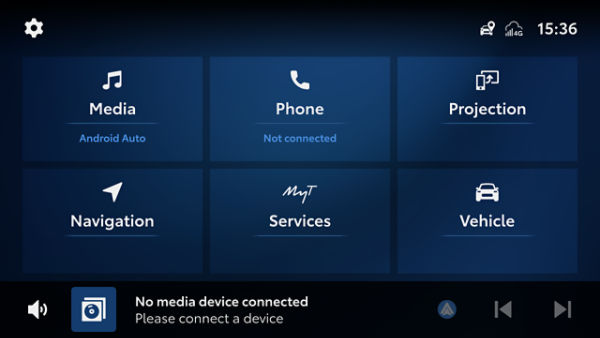
To enjoy the full benefits of the new feature, the latest navigation version [6.1.2] needs to be installed. Navigation software installations are completed automatically when you start your car.
Then, when starting your car, you need to accept the Terms and Conditions and Privacy Notice to be able to use navigation and Smart Services.
Finally, accept and activate the consent for Offers and Smart Stops in the navigation settings.
You’re all set up – simply display the navigation system feature whenever you’re on a journey in your Toyota to use the feature.
On your multimedia screen, go to Navigation, then to settings at the top right of the screen. Select the Navigation tab in settings and slide down to ‘Map data’. Here you can see the Navigation version number at the top of the screen. This number needs to be equal to [6.1.2] or above ([7.1.1,…]).
In the settings menu of the navigation system under ‘Services’, you will find an option to toggle Offers and Smart Stops on or off. You can either toggle off Smart Stops to no longer see any Smart Stops, or you can toggle off Offers, in this case you will no longer see Branded Pin, Search or Recommendations. This gives you control over the content you see, allowing you to customise your navigation experience based on your preferences. You can change the settings at any time.
The Offers feature includes Branded Pins: showing brand logos on the map and making it easy for you to explore your surroundings whilst driving; improved Search where the most relevant search results are provided to you; Smart Stops - a recommendation of POIs nearby utilising car sensor data to identify your/your Toyota’s current need.
Branded Pins are brand logos displayed directly on the map, indicating the locations of POIs, making it easier for you to find and navigate to your favourite locations. Once you park your vehicle in a safe place, click a logo on the screen to see the Details Screen - here you can discover special offers available at the POI, and learn how to benefit from the offer depending on the type of POI (this can be a QR or discount code that optionally appears on the image or in the text).
This functionality ensures drivers have easy access to relevant results, improving the overall search experience. Most relevant search results are shown at the top of the search result list with a decorative ribbon on the card and a brand logo displayed. Click on the top search results to see the Details Screen - here you can discover special offers available at the POI, and once safely parked, learn how to benefit from the offer depending on the type of POI (this can be a QR or discount code that optionally appears on the image or in the text).
The Smart Stops feature analyses various factors, including car sensor data information, to recommend interesting POIs nearby leveraging car sensor data to detect your/your Toyota’s current need. Click on the Smart Stops card on the screen to see the Details Screen - here you can discover special offers available at the POI, and once safely parked, learn how to benefit from the offer depending on the type of POI (this can be a QR or discount code that optionally appears on the image or in the text).
Once you park your vehicle in a safe place, click on the POI to see the Details Screen – here you can learn how to benefit from the offer depending on the type of POI (this can be a QR or discount code that optionally appears on the image or in the text).The Details screen also provides the validity period of the offers. The validity can vary from one POI to another.
The low-fuel Smart Stop functionality is designed to provide drivers with timely suggestions for nearby fuel stations when your fuel level is low. The navigation system uses real-time data of your vehicle's fuel level, distance travelled, and the location of available fuel stations to intelligently suggest where to refuel. When the system detects a low fuel threshold (remaining driving range of 140 km or 70 km), it prompts you with recommendations for fuel stations nearby.
Click on the Smart Stops card on the screen to see the Details Screen - here you can discover special offers available at the POI, once your vehicle is safely parked.
This Smart Stop functionality is designed to suggest a POI when you have been driving for more than two hours. The navigation system considers factors such as your driving time, current location, and preferences, to recommend relevant and interesting places to explore and take a break. Recommendations are typically provided at intervals during your journey to enhance your overall driving experience. By clicking on the Smart Stops card on the screen, you get to the Details Screen - here you can discover special offers available at the POI, once your vehicle is parked in a safe place.
The real-time POI feature is designed to be accessible across Europe, but initial availability may vary by region. We are continually expanding coverage to ensure a comprehensive experience in more regions. There are no additional charges associated with the service.
Yes, you have the option to disable the feature within the navigation system settings if you prefer not to receive Offers or Smart Stops. Rest assured the system is designed to prioritise your user data privacy and security. The feature accesses only necessary information, and data handling complies with our privacy policy, ensuring a secure and transparent user experience. To learn more about our privacy practices, please visit the Toyota Privacy Policy.
Wallet
By having a wallet in the app, you can store multiple payment methods to buy Toyota products and services and pay for subscriptions.
Your payment methods are securely stored in a PCI-compliant data centre provided by one of our partners. These methods will only be used to pay for the products and subscriptions you have selected.
Only Visa and Mastercard Credit Cards are currently supported. Other payment methods may be added in the future.
Yes, you can add multiple payment methods, but only the primary payment method will be used for upcoming payments.
Absolutely, you can remove payment methods at any time, with one exception. If you have an active paid subscription, you must have at least one payment method registered. If you wish to remove all payment methods, you must first cancel your subscription.
Once a credit card has been added, you cannot modify any other data associated with it. If you need to make any changes such as updating the expiration date, you will have to add a new card with the correct information and then remove the card with the incorrect information.
Payment methods are stored within our PCI-compliant payment services provider.
Yes, you can change the primary/default payment method any time.
This is a one-time secure validation required when adding a new card.
There are several reasons why adding a payment method can fail. These include a blocked card or failure to meet 3DS secure requirements. If unsuccessful after multiple attempts, please contact your local Toyota customer centre.
It is crucial to get in touch with your bank or card issuer in situations like this. To prevent any payment problems with the Toyota app, add a new card or select an alternate primary payment method at your earliest convenience.
To avoid missing payments, please add a new primary payment card to your wallet or set a new one as the primary one. We recommend deleting the expired one.
The primary card is always used by default. For example, all your subscription payments will be charged from the primary. The other cards can be saved in your wallet but will not be used unless you make one of them the primary card.
You will only see the payment method screen if your account/vehicle are eligible for app payments. Eligibility depends on the app version, vehicle model, and your location.
Subscription Process
We provide customers with a variety of subscription services for both their vehicle and the app. Several of these services are included in the Standard Subscription package. However, certain Connected Services such as Cloud Navigation, Remote Climate Control and Door Lock/Unlock will require you to sign up for a paid subscription once the trial period expires. Toyota offers a range of subscription options and bundles to meet your specific needs.
If your Connected Services trials are coming to an end, you can keep enjoying them with one of our subscription plans. With monthly, yearly, or every 4-year billing options, you can choose the subscription plan that works best for you!
For some subscriptions, yes.
Several features and services offered by Toyota require you to have a valid payment method added to your wallet and you enrol in a plan that best suits your needs. Additionally, certain subscriptions are complimentary for a limited time period when you purchase your vehicle but will require payment after the free period ends.
Several features and services offered by Toyota require you to have a valid payment method added to your wallet and you enrol in a plan that best suits your needs. Additionally, certain subscriptions are complimentary for a limited time period when you purchase your vehicle but will require payment after the free period ends.
You can pay with one of the payment methods added to your wallet. As of now, only Visa and Mastercard credit cards are accepted.
Please check your subscription's free trial duration. The paid options include monthly, yearly, or every four years payments.
Your payment will depend on the service or feature you want and whether you select a monthly, yearly or every 4 years tariff. Please check all the options when examining each subscription individually.
Price may also vary by country.
Price may also vary by country.
When you sign up for a paid subscription, you will be granted a one-month free trial period, provided you enter a payment method. This offer can only be used once per subscription package. If you use the trial and then cancel your subscription, the next time you sign up, you will have to pay from the first day.
The subscription will remain active until the end of the trial and will automatically be cancelled on that day. You will not be charged.
The trial period of one month can only be used once. If you have already taken advantage of a trial, you will not be eligible for another. If you have never subscribed before but do not see the trial option, please contact your local customer centre for assistance.
The 14-day withdrawal right applies and counts from the day you activate your subscription. If you are eligible for a trial, there is nothing to worry about since you have one month to cancel without any costs.
After the trial period ends and the first payment is processed, the 14-day right of withdrawal is no longer applicable, and no refund is possible.
If you are not eligible for the trial and make the first payment, you have 14 days to cancel to receive a full refund. Your 14-day withdrawal right is only applicable once.
After the trial period ends and the first payment is processed, the 14-day right of withdrawal is no longer applicable, and no refund is possible.
If you are not eligible for the trial and make the first payment, you have 14 days to cancel to receive a full refund. Your 14-day withdrawal right is only applicable once.
If you are eligible for the trial, the first payment will occur exactly one month after the activation date.
For monthly enrolment, you will be charged on the same day each month. For example, if your activation date is January 10th, your first payment will occur on February 10th, the next one on March 10th and so on.
For yearly enrolment, you will be charged on the same date every year. For example, if your activation date is January 10th, 2024, your first payment will occur on February 10th, 2024, and the next one on February 10th, 2025.
For the four-year enrolment, you will be charged on the same date every four years. For example, if your activation date is January 10th, 2024, your first payment will occur on February 10th, 2024, and the next one on February 10th, 2028.
If you opt-in, we can send you notifications before each payment for yearly and four-year enrolment.
For monthly enrolment, you will be charged on the same day each month. For example, if your activation date is January 10th, your first payment will occur on February 10th, the next one on March 10th and so on.
For yearly enrolment, you will be charged on the same date every year. For example, if your activation date is January 10th, 2024, your first payment will occur on February 10th, 2024, and the next one on February 10th, 2025.
For the four-year enrolment, you will be charged on the same date every four years. For example, if your activation date is January 10th, 2024, your first payment will occur on February 10th, 2024, and the next one on February 10th, 2028.
If you opt-in, we can send you notifications before each payment for yearly and four-year enrolment.
We need a billing address for your invoice, to be sent after each payment or refund. When adding a new card, the billing address associated must be notified. This address is used for security purposes (3DS validation).
Yes, you can cancel your subscriptions any time.
The refund policy varies between cases. To learn more about refunds, please refer to the Refund section.
No, auto-renew is always the default.
Unfortunately, your subscription is only valid for the specific vehicle that you have subscribed to.
You can activate a subscription for one vehicle at a time. Once a service is activated from the Connected Services Centre, it will apply to the currently selected vehicle in 'My Garage'.
No, there can only be one main user and, therefore, subscriber of services per vehicle. Subscriptions cannot be shared with others.
The previous owner must remove the vehicle from their account to enable the new owner to subscribe to services for the vehicle. If this is not possible, the new owner can contact the dealer, who can assist in cancelling the previous user's subscriptions.
Please contact your local customer centre for help.
To subscribe to a Connected Service in the MyToyota app, follow the steps below:
- Go to the Connected Services Centre and select the service you are interested in
- Choose your subscription plan - monthly, yearly or every 4 years
- Proceed to the checkout and enter your billing address and payment information. You will need a billing address and a valid payment method in your wallet
- Review your purchase in the Summary and activate the service if you're ready
- If you're eligible for a trial, you won't be charged yet, but you'll be able to see the due date of your first payment. If you've already used a trial, you'll be charged at this point and an invoice will be sent to your email.
Not without cancelling an existing plan first. After ending the current subscription, you can select a different enrolment type.
You can update your payment method by adding a new credit card to your wallet and setting it as the primary card. This way, your subscriptions will be charged to the new card.
Yes, your payment method can be used to pay for multiple subscriptions in multiple vehicles.
Vehicle eligibility depends on several factors such as the vehicle model, multimedia device, account, country, and purchase date.
A reminder email is sent to you a few days before the end of your subscription term, notifying you to update your payment information for renewal. If you wish to discontinue their subscription, you must cancel it before the subscription end date.
The subscription can be cancelled by going to the Connected Service Centre on the MyToyota app and selecting the service they wish to cancel. In case of any issue with the app, the customer can contact us directly for additional support at any time.
The subscriptions can be viewed by going to Connected Service Centre on the MyToyota app.
Payments and Invoices
No, you are only required to authorise subscription payments once during checkout. Payments will then be collected automatically.
Your invoices can be found in your email. If you have misplaced them, please contact your local customer centre to request a new copy.
If you have lost your invoices, please contact your local customer centre to obtain new copies. You can also find all your invoices in your email.
In the event a payment fails, we will promptly notify you and make a second attempt the following day. If the payment still fails, we will make one final attempt the day after. If these attempts are unsuccessful, the subscription will be automatically cancelled, and you will receive a notification of the cancellation.
The MyToyota app will notify you when your current card expires. You must add a new card before the primary one expires, as failure to do so may result in payment failure.
The payment of your credit card bill is an agreement between you and the card issuer. As long as the payment is authorised, your subscription will remain active.
Please double-check your subscription price and amount. If you notice any discrepancies, please contact your local Toyota customer centre.
We will always collect the payments on the due date. If you notice that you haven't been charged, first make sure that there is no issue with your card. Additionally, check if you have received any payment failure email or notifications from us. If there are no issues from your side and you haven't received any notification from us, it could be a delay in our systems, in which case we will retry soon. However, if the payment never goes through, please contact your local customer centre for further assistance.
Please contact your local customer support.
Yes, if you get refunded, you’ll receive an invoice showing its details.
Yes, an invoice will be sent after each transaction to the email address linked to your MyToyota account.
It depends on your enrolment options. Please refer to the subscription FAQs for more information.
Refunds
Please note the following regarding our enrolment and refund policies:
- For monthly enrolment, there are no refunds in case of cancellation. However, your subscription will not be automatically renewed at the end of the term.
- For yearly or 4-year enrolment, you are eligible for a pro-rata refund calculated in months.
- Regardless of enrolment type, you will receive a full refund if you cancel within 14 days of signing up (and you do not have a trial).
- You are only eligible for a 14-day refund once. For further details, please refer to our Terms of Usedownload (docx( (130 KB).
You’ll get a pro-rata refund.
Yearly case example:
The trial activation began on January the 10th, the first payment is due on February 10th, and cancellation occurred by May 30th. Therefore, you used the service for more than 3 months, so we will consider it as 4 months. As a result, you will be refunded for the remaining 8 months.
4-year case example:
The trial activation began on 10/Jan/24, the first payment is due on 10/Feb/24, and cancellation occurred by 30/May/25. Therefore, you used the service for more than 15 months, so we will consider it as 16 months. As a result, you will be refunded for the remaining 32 months.
Yearly case example:
The trial activation began on January the 10th, the first payment is due on February 10th, and cancellation occurred by May 30th. Therefore, you used the service for more than 3 months, so we will consider it as 4 months. As a result, you will be refunded for the remaining 8 months.
4-year case example:
The trial activation began on 10/Jan/24, the first payment is due on 10/Feb/24, and cancellation occurred by 30/May/25. Therefore, you used the service for more than 15 months, so we will consider it as 16 months. As a result, you will be refunded for the remaining 32 months.
No. Due to European regulations (anti-money-laundry laws), you can only be refunded on the same card you used for the original payment. We will always send a refund request to the original card. In cases where the card maybe blocked, expired or has changed, your card issuer should be able to refund the money to you through a new card or directly in your bank account. Toyota is not involved in this process. In exceptional cases when a refund fails, the issuing bank will notify us, and Toyota will contact you to request more information so that the refund can be processed.
Refunds may take up to a week to appear on your credit card statement or bank account. If you don’t receive your refund after this time, please contact your local customer centre.
Please double-check the Terms of Use. If you can confirm there’s a mistake, please contact your local customer centre.
You will receive an invoice containing the details of your refunds
Yes. You will receive a full refund.
The 14-day withdrawal period starts from the day your subscription is activated, not from the first payment.
This only applies when you are not eligible for the 1-month trial and have to pay from day one. Please note, that you can only receive the 14-day refund once.
The 14-day withdrawal period starts from the day your subscription is activated, not from the first payment.
This only applies when you are not eligible for the 1-month trial and have to pay from day one. Please note, that you can only receive the 14-day refund once.
If eligible for a refund, we will automatically calculate the amount based on your usage and send an invoice detailing the refund total and when you will receive the funds.
After cancelling your subscription, we will promptly request the refund be processed. However, due to processing time from the card issuer or bank, it may take a few days for it to appear on your credit card or account statements. If you haven't received it after a week or so, please contact your local customer centre.
No, our refund policy in the Terms of Use states you will receive the entire refundable amount (including fees/taxes).
Security & Privacy
When you add a new payment method to the MyToyota app, the information is transmitted directly to our partner who is compliant with the Payment Card Industry Data Security Standard (PCI DSS). They will be responsible for securely storing your data. After being stored, you will only be able to view certain details of your payment method, such as the last four digits. Toyota's systems and its employees/agents do not have access to the complete payment method information and cannot read it.
Yes, all your personal data is stored and handled in compliance with applicable privacy law.
Our databases are encrypted and secure, and all our systems have access control mechanisms to ensure the protection of your data. Additionally, data transmission between our systems is encrypted to provide an extra layer of security.
We process payment-related data according to the Payment Card Industry Data Security Standard, which is a set of guidelines designed to protect cardholder information.
For personal data, we adhere to the security principles outlined by the EU General Data Protection Regulation (GDPR) to safeguard your personal information and maintain your privacy.
We process payment-related data according to the Payment Card Industry Data Security Standard, which is a set of guidelines designed to protect cardholder information.
For personal data, we adhere to the security principles outlined by the EU General Data Protection Regulation (GDPR) to safeguard your personal information and maintain your privacy.
Yes. Toyota follows the strict PCI Compliance rules when handling financial information.
The payment information is securely stored by our PCI Compliant partner, Pay-D GmbH. They utilise data sub-processors to process the transactions. No other partners or entities have access to your financial data. For more information, please refer to our Privacy Notice.
Notifications
For yearly and 4-year options, you will receive a notification by email before the automatic renewal.
Some notifications can be customised, while others are mandatory (such as payment failures). Push notifications can be disabled from your phone settings at any time.
Yes, you will receive notifications in the app and via email in case of failed payments.
No. Currently there is no way to disable notifications. However, this feature may be added in the future.
All types, depending on the kind and importance of the notification.
Compatibility & Devices
The device requirements are the same for the app.
Currently, you cannot transfer a subscription from one vehicle to another. You need to remove any active subscription from a vehicle first, which will also cancel any associated subscriptions. After removal, you can then add a new vehicle and activate a new subscription for it.
Simply log in to your Toyota account on the new phone. You’ll then be able to see and manage your existing subscriptions normally.
If you decide to cancel your paid subscription, a date for service deactivation will be set, depending on your subscription package. Depending on the subscribed package and the time of cancellation, you may also be eligible for a refund. For more information, please refer to the Terms of Use.
All subscriptions, including paid subscriptions, will be cancelled when the vehicle is removed from the app.
Trouble shooting
Yes. Please check the information that you received from your dealer. Your local customer centre channels should be available there.
There are many possible reasons for this. We recommend first checking that your current card is valid and has enough balance. If the error persists, contact your local customer centre.
There could be various reasons why you are facing problems with the service. It might be due to a delay in subscription activation or the service you are trying to access could be temporarily unavailable or undergoing maintenance. If you are experiencing any issues, we recommend that you get in touch with your local customer centre.
Different scenario may cause your Remote services not to work. Let's try to list the most frequent ones:
- Your vehicle may not support some or all the remote services. Please contact your retailer to find out.
- You may not have subscribed to the remote services.
- If you have not used your car for more than 9 days then your car might have gone into sleep mode to protect its battery life. Please go to your car and start the engine.
- Please verify that all preconditions are met: all doors closed, hood closed, smart key not inside the vehicle
- You have a Plugin hybrid vehicle or Battery Electric Vehicle and Remote Climate won't start? Your EV battery might be below 30% or 20% (depending on the model) in that case please charge your battery.
- You have a plugin hybrid vehicle and remote climate won't start? If the outside temperature is below -10°C remote climate won’t operate.
As you are continuing with an existing service, you will have the same amount of time left as per the old app. For example, in the old app, if your service was active for one year, and you have the service available for another five more, those same five years will be available to you in the new app.
Connected Services and Connected Navigation are available for a period of six years from the initial activation.
To activate services, please ensure:
1) you drive your car for a few trips, each lasting 20 minutes
2) you have turned off privacy mode on the in-vehicle multimedia screen
3) your car is in an area with good mobile coverage.
Please note that activation can sometimes take up to 24 hours.
The EU Data Act (Regulation (EU) 2023/2854) is a regulation that ensures fair access to and use of data generated by connected products and related services. In the automotive context, this includes:
- Connected vehicles (cars, vans, trucks with telematics capabilities)
- Smart home chargers (EV charging stations)
- Related services like mobile apps for remote vehicle control or charging management
- Vehicle Data: Data generated by the operation and performance of the vehicle, listed in the categories below.
o Location data:
- Geolocation information (e.g., geolocation of your vehicle (longitude and latitude), planned destination, journeys, direction of travel), at precise times;
- Journey information (e.g., recent destinations, favourite destinations).
o Telematic data:
- Driving behaviour (e.g., driving logs, driving speed, acceleration, and brake speed);
- Technical vehicle data (e.g., mileage, fuel consumption, warnings) and diagnostic data (e.g., system failures and warning lights);
- Home Charger Data: Data generated using home chargers, listed in the categories below.
o Charging Session Data: Information about each charging session, including start and end times, duration, and energy consumed.
o Energy Consumption Data: Detailed records of the amount of electricity used during charging, often broken down by time intervals.
o Charging Efficiency: Data on the efficiency of the charging process, including any losses that occur during charging.
o Device Status: Real-time status updates of the home charger, such as operational status, error codes, and maintenance alerts.
- Related Service Data: Data representing your interactions with our services, including navigation history, vehicle and/or home charger control.
- Metadata: Data necessary to interpret the above categories, such as descriptions, timestamps. location and units of measurement.
The EU Data Act, grants significant rights to the users of connected products. These rights are designed to give you greater control, transparency, and flexibility over how your data is accessed and used.
More specifically:
1. Right to View and Receive Data
You have the right to access and receive the data generated by your connected product and its associated digital services. This includes:
- Real-time and historical data such as location, fuel consumption, tyre pressure, engine diagnostics, and driving behaviour.
- Both personal and non-personal data, depending on the context of use (e.g., individual driver vs. fleet operator).
- Data must be provided in a structured, commonly used, and machine-readable format, free of charge.
- This right ensures that you can understand what data is being collected and how it is used, and retrieve it for your own purposes — such as analysis, resale, or switching service providers.
2. Right to Share Data with Third Parties
You also have the right to instruct the vehicle manufacturer (or other data holders) to share your data with a third party of your choice. This could be:
- Independent repair shops or service providers for diagnostics and maintenance.
- Insurance companies for usage-based insurance policies.
- Fleet management platforms for logistics optimization.
- Digital service providers offering apps or tools that enhance your driving experience.
Manufacturers are legally obligated to make this data available to the third party you designate, under fair, reasonable, and non-discriminatory terms. This promotes competition and innovation, and prevents lock-in to a single service provider.
3. Transparency and Access by Design
Manufacturers must ensure that:
- You are clearly informed about what data is collected, how it is used, and your rights.
- Vehicles, home chargers and services are designed with “access by design”, meaning data must be easily and securely accessible to you and your chosen third parties.
Examples
Example 1: Independent Maintenance: You want to use a local garage instead of Toyota’s service center. You can request that your vehicle’s diagnostic and maintenance data be shared directly with the garage, enabling them to perform repairs without needing proprietary tools or data.
Example 2: Insurance: You opt for a usage-based insurance policy. You can authorize your insurer to receive driving behavior data (e.g., speed, braking patterns) directly from your vehicle to calculate a personalized premium.
Example 3: Fleet Management: As a fleet operator, you can access real-time data from all vehicles in your fleet and share it with a third-party logistics platform to optimize routes, monitor fuel efficiency, and schedule maintenance.
Example 4: Energy Consumption optimization. A third-party energy management company can combine data from a connected home charger, with that of other connected enrgy consuming devices, and provide reports and suggestions to optimize charging times, reduce electricity costs, and improve energy efficiency based on real-time grid conditions and user preferences.
1. Toyota Customer Portal (Data Sharing Platform)
Through the Toyota Customer Portal, you can:
- View and download vehicle and home charger data such as trip history, fuel consumption, maintenance records, charging records and system alerts.
- Grant access to third parties like insurers, repair shops, or fleet managers.
- Monitor your vehicle’s performance and receive proactive service notifications.
- Please note that in order to use the Data Sharing Platform, you need to have a Customer Portal account.
This platform is designed to ensure transparency, ease of access, and compliance with the EU Data Act’s “access by design” requirements.
2. Vehicle Interface and On-Board Diagnostics (OBD) Port
Your vehicle is equipped with an OBD port, which allows:
- Direct access to real-time diagnostic data (e.g., engine performance, fault codes).
- Use of third-party OBD tools and apps to retrieve and analyze data independently.
- Support for independent service providers to perform diagnostics and repairs without relying on proprietary systems.
This ensures that you — or a service provider of your choice — can access essential vehicle data without restrictions.
3. MyToyota App (Companion Mobile App)
The MyToyota app offers a mobile-friendly way to:
- Access your vehicle and home charger data anytime, anywhere.
- Receive real-time alerts, track your driving behavior, and monitor vehicle health.
The app complements the customer portal and OBD interface, giving you full control over your data in a convenient and user-friendly format.
Through the Data Sharing Platform in the Toyota Customer Portal, you can grant access to third parties like insurers, repair shops, or fleet managers.
This platform is designed to ensure transparency, ease of access, and compliance with the EU Data Act’s “access by design” requirements.
No charge for personal access. A reasonable fee may be charged to third-parties that receive access to your data.
To support transparency and compliance with the EU Data Act, Toyota provides a comprehensive data catalogue that outlines the types of data generated by connected vehicles and available for access or sharing.
You can find the full list of available data — including technical, usage, and diagnostic data — through the Toyota Data Sharing Platform, accessible at:
https://eda.toyota-europe.com/
The catalogue contains:
Descriptions of each data type, including format, frequency, and source (e.g., GPS, sensors, ECUs).
Categories of data, such as:
- Vehicle health and diagnostics
- Driving behavior and usage
- Location and trip data
- Environmental and sensor data
- Home charger data
This catalogue helps users and third-party service providers understand what data is available,— ensuring fair, informed, and secure data use.
You can access vehicle or home charger data (on behalf of the product user):
Indicative examples:
- Perform remote diagnostics before a service appointment
- Offer predictive maintenance (e.g., alerting when vehicle components are worn)
- Provide charging support (e.g., program home chargers to initiate charging when tariffs are low)
Your responsibilities are defined in the relevant Terms of Use provided when you register for an account and raise an onboarding request.
Yes, provided that the product user has raised a request. Examples:
- An insurer accesses driving behavior data to offer a pay-how-you-drive policy
- A fleet manager retrieves charging logs from home chargeres to optimize
energy use
- A mobility app uses vehicle location and lock status to enable car sharing
Via:
- APIs (e.g., RESTful APIs for real-time vehicle telemetry)
- The Data sharing platform. You can access the platform via https://eda.toyota-europe.com/
- Standard formats (e.g., JSON, CSV)
Toyota Motor Europe (TME) ensures that data protected through robust technical and organizational safeguards, in compliance with legal and regulatory requirements.
- Security Governance: Company-wide policies and dedicated teams manage and oversee information security and privacy.
- Vulnerability & Patch Management: Regular updates and third-party assessments to identify and fix security weaknesses.
- System & Network Security: Use of encryption, antivirus, access controls, and monitoring to protect IT infrastructure.
- Cloud & Vehicle Security: Specialized controls for cloud environments and vehicle systems, aligned with international standards (e.g., ISO 21434, UNR155).
- Incident Response: Structured processes to detect, report, and respond to security and privacy incidents.
- Data Privacy Compliance: Adherence to GDPR, including data subject rights and vendor compliance checks.
- Training & Awareness: Ongoing education for employees on data protection responsibilities.
- Confidentiality & Access Control: Strict rules for handling sensitive information and limiting access based on roles.
- Risk Management: Regular assessments and mitigation planning for data protection risks.
If the requirements in the Terms and Conditions are not met, Toyota may refuse access to the data. In this case, you can file a complaint through your dealer or via the MyToyota app or website, and an authorized representative will address your issue.
Some vehicle models include an Accident Assistant feature that automatically detects potential damage to your vehicle while driving, including accidents.
Accident Assistant is automatically activated as part of your Standard Services subscription for supported vehicles, so there’s no need for manual activation.
The Accident Assistant feature is constantly learning to better detect real accidents. Sometimes it may flag events that are not accidents, such as sudden acceleration, hard braking or driving over a large bump.
The Accident Assistant only works while your vehicle is running. When your vehicle is parked and turned off, the system isn’t actively monitoring for damage or incidents. So unfortunately, any damage that happens while your vehicle is parked won’t be detected by the system.
There can be delays in showing events, particularly if your vehicle hasn’t had a stable internet connection to send the data. Severe crashes involving airbag deployment may also take longer to process and send alerts. It’s also possible that certain types of collisions might not be detected by the system.
When a crash is detected, the system collects data including the following:
- Time and date of the event
- Vehicle speed at the time of impact
- Direction and severity of the impact
- GPS location
This data helps assess the accident and support further analysis.
Crash notifications are sent to our systems. If you’ve chosen to consent to ‘connected vehicle assistant’, your information may be shared with dealerships in our network so they can contact you to help arrange repairs.
The Accident Assistant is an integral part of the Standard Services subscription and is designed as a core safety feature. Sharing your crash information with dealerships in our network, however, is entirely based on your consent. You have the option to choose not to consent to any processing or communication of your crash information with dealers. If you wish to disable Accident Assistant completely, the only way to do so is by unsubscribing from the Standard Services.
No, the Accident Assistant doesn’t directly contact emergency services. It sends information to our system, which may prompt follow-up actions like a call from your dealership to arrange repairs. Always call emergency services yourself if you need immediate help.
It's important to note that sharing accident data for insurance or legal purposes is not automatic, it's entirely up to you. If you wish, you can manually generate and download a report containing the accident data and any photos you've uploaded, which you may then share with third parties such as insurance companies or legal representatives.